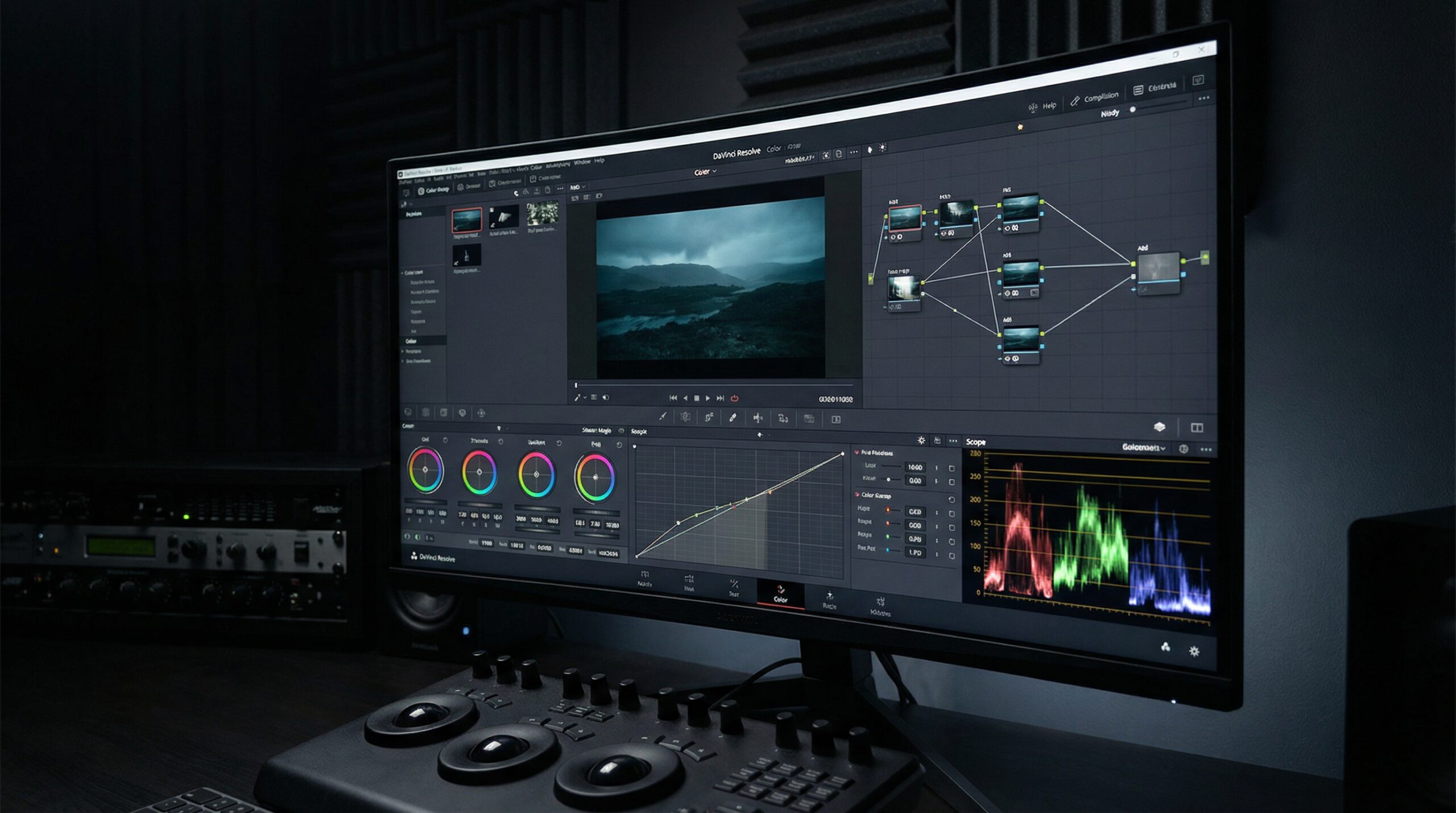

You’ve spent $4,000 on a cinema camera, $2,000 on lenses, and $800 on audio gear. Then you sit down to edit on a laptop with 16GB of RAM and a spinning hard drive, and wonder why scrubbing through 4K ProRes feels like trying to run Cyberpunk on a calculator. Sound familiar?
Your editing workstation is the final bottleneck in your filmmaking pipeline. And unlike cameras and lenses, which have genuine diminishing returns past a certain price point, editing hardware has a nearly linear relationship between investment and time saved. A faster workstation doesn’t just make editing more pleasant — it makes you more productive, which means more projects, more income, and less time staring at export progress bars.
Here’s what actually matters — and what is pure marketing noise.
The Three Things That Actually Speed Up Your Workflow
1. Storage Speed (The Biggest Bottleneck)
If you’re editing off a USB 3.0 hard drive in 2026, you are literally wasting hours of your life every week. The single biggest upgrade you can make to your editing speed is switching to NVMe SSD storage.
An NVMe drive reads data at 3,500–7,000 MB/s. A spinning hard drive reads at about 120 MB/s. That’s not a 2x improvement — it’s a 30x improvement. Timeline scrubbing, clip loading, effect previews, and export speeds all improve dramatically.
For portable work, the Samsung T7 portable SSD ($90 for 1TB) is my go-to. It reads at 1,050 MB/s over USB-C — fast enough for real-time 4K editing on the go. I carry two: one for current projects, one as a backup.
Casey Faris, who runs the best DaVinci Resolve tutorial channel on YouTube, is blunt about this:
“If you’re editing 4K on a hard drive, you’re doing it wrong. An SSD is not optional in 2026. It’s the bare minimum. I don’t care if you’re on a $500 budget laptop — buy an external SSD first, before literally anything else.”
— Casey Faris, DaVinci Resolve Educator
2. RAM (More Than You Think You Need)
32GB is the minimum for comfortable 4K editing. 64GB is ideal. 128GB is overkill unless you’re doing heavy Fusion/After Effects compositing.
DaVinci Resolve, in particular, is a RAM-hungry beast. A 30-minute timeline with color grades, noise reduction, and a few Fusion overlays can easily consume 40GB of RAM. If your system starts swapping to disk, your editing experience goes from smooth to slideshow instantly.
The good news: RAM is cheap in 2026. A 64GB DDR5 kit runs about $120. That’s the price of two nice dinners. Skip the dinners. Buy the RAM.
3. GPU (For Color Grading and Effects)
Your GPU handles color grading, noise reduction, and real-time effects playback. For DaVinci Resolve, the GPU is the single most important component for playback performance. For Premiere Pro, it matters less (Adobe is more CPU-dependent).
My recommendation: An NVIDIA RTX 4060 Ti ($400) is the sweet spot for 4K editing. It handles Resolve’s GPU-accelerated features beautifully, has 16GB of VRAM for complex timelines, and doesn’t require a nuclear power plant for electricity.
What Doesn’t Matter (Despite What Manufacturers Tell You)
CPU core count beyond 8 cores: Editing is mostly single-threaded for timeline performance. A fast 8-core CPU (Intel i7 or AMD Ryzen 7) outperforms a slower 16-core for actual editing work. Export speeds benefit from more cores, but you’re exporting, what, once per project? 4 minutes vs 6 minutes doesn’t change your life.
Thunderbolt 4: Unless you’re using a Thunderbolt-specific device (like the CalDigit TS4 hub), USB-C 3.2 at 10Gbps is fast enough for everything. Don’t pay a $300 premium for a Thunderbolt laptop if you don’t need it.
RGB everything: Your RAM doesn’t edit faster because it glows. I promise.
The Monitor Situation: Color Accuracy Matters
If you’re color grading — and if you’re reading Film Gear Review, you probably are — you need a monitor that can actually display accurate color. The BenQ SW271C is the gold standard for filmmakers who can’t afford a $4,000 Eizo. It covers 100% sRGB, 99% AdobeRGB, and 90% DCI-P3, comes hardware-calibrated, and costs about $550.
Do not color grade on a MacBook screen. Do not color grade on a gaming monitor. You will deliver work that looks completely different on your client’s display, and that conversation is never fun.
My Recommended Builds
| Component | Budget ($1,200) | Sweet Spot ($2,500) | No-Compromise ($4,000) |
|---|---|---|---|
| CPU | AMD Ryzen 5 7600 | AMD Ryzen 7 7800X3D | AMD Ryzen 9 7950X |
| GPU | RTX 4060 (8GB) | RTX 4060 Ti (16GB) | RTX 4070 Ti Super (16GB) |
| RAM | 32GB DDR5 | 64GB DDR5 | 128GB DDR5 |
| Storage | 1TB NVMe | 2TB NVMe + 4TB HDD | 4TB NVMe + 8TB HDD |
| Monitor | Dell S2722QC 4K | BenQ SW271C | BenQ SW271C + SmallHD |
| Best For | 1080p/4K editing, basic grading | 4K color grading, ProRes RAW | 6K+ editing, heavy VFX |
The Most Overlooked Upgrade: A Good Desk Chair
I’m serious. If you’re editing 6-8 hours a day, your chair matters more than your CPU. A $400 ergonomic office chair will prevent back problems that cost thousands in physiotherapy. Your body is the most important piece of gear you own. Take care of it.
Final Thoughts
Upgrade in this order: SSD → RAM → GPU → Monitor → CPU. That’s the order of diminishing returns. A $90 Samsung T7 will make a bigger difference to your daily editing experience than a $500 CPU upgrade. Start cheap. Start smart. And for the love of cinema, stop editing on a spinning hard drive.
Disclosure: This article contains affiliate links. As an Amazon Associate, Film Gear Review earns from qualifying purchases. Our editorial opinions are always our own.


As an Amazon Associate we earn from qualifying purchases.

Mehedi Rahman is a freelance multimedia producer and impact filmmaker with 12+ years of experience. He has shot documentary and humanitarian work across Yemen, Bangladesh, and South Asia for the World Food Programme and international media. Based in Sri Lanka, he specialises in visual storytelling that moves people — and gear that makes it possible.
2 responses to “The Filmmaker’s Editing Workstation Guide: What Actually Speeds Up Your Workflow”
Thank you for being honest about RAM! I started with 16GB trying to edit 4K in Resolve and it was an absolute nightmare. 64GB made a world of difference.
The point about external SSDs cannot be overstated. I went from a spinning HDD to a Samsung T7 and rendering times dropped by like 60%.